 by
by At some point, almost everyone ends up needing to move data across devices that weren’t really designed to talk to each other. Maybe you’re switching from an iPhone to a Samsung, backing up years of photos to a laptop before a factory reset, or just trying to get your contacts synced across three different devices you use throughout the day. It sounds like it should be simple, and yet it’s one of those tasks that quietly eats up an entire afternoon if you don’t know the right approach.
The truth is, there isn’t one single “best” method that works for every situation. The right way to transfer your data depends on which devices you’re moving between, how much data you’re dealing with, and whether you want a one-time full migration or an easy way to keep files in sync going forward. This guide breaks down the most reliable methods for every combination — iPhone to Android, iPhone to PC, and Android to PC — plus the one approach that comes closest to being a universal solution.
Why There’s No Single Universal Method
Apple, Google, and Microsoft all built their ecosystems with their own priorities in mind, and none of them were especially eager to make it effortless to leave for a competitor’s platform. That’s slowly changing, but it’s still true that a method that works beautifully for photos might not touch your text messages, and a tool built for contacts often ignores app data entirely.
Because of that, the smartest approach is to match the method to what you’re actually trying to move, rather than searching for one tool that does everything perfectly. Here’s how that breaks down.
Transferring Data Between iPhone and Android
This is usually the trickiest pairing, since Apple and Google don’t naturally sync with each other. Still, both companies have built official tools to make switching less painful.
Moving From Android to iPhone
Apple’s Move to iOS app is the most reliable free option, and it’s built specifically for this transition. It works during the initial setup of a new iPhone:
- On your Android device, install the Move to iOS app from the Google Play Store.
- Start setting up your new iPhone and choose “Move Data from Android” during the setup screens.
- A code will appear on the iPhone — enter it on your Android device to create a private Wi-Fi connection between the two.
- Select what you want to transfer (contacts, message history, photos, videos, and more), then let it run until it finishes.
The catch is that this only works during the iPhone’s initial setup process. If your iPhone is already set up, you won’t be able to use it without resetting the device first.
Moving From iPhone to Android
Google offers a similar experience for the reverse direction. Most Android phones include a Switch to Android or “Data transfer” tool during setup, which can pull contacts, photos, and calendar data from an iPhone, usually with a cable connecting the two phones directly for the fastest results. Samsung devices go a step further with Smart Switch, which handles the transfer smoothly and even supports pulling data from an iCloud backup wirelessly if you don’t have both phones in hand.
For Selective or Ongoing Transfers
If you don’t need a full one-time migration and just want an easy way to move specific files, cloud storage is usually simpler:
- Photos and videos: Set both devices to back up to Google Photos, and everything becomes accessible from either platform automatically.
- Contacts: Export contacts to your Google account from an iPhone (Settings > Contacts > Accounts), and they’ll sync to any Android device signed into the same account.
- Documents and files: Google Drive, Dropbox, or OneDrive all work identically on iOS and Android, making them a dependable middle ground for anything that isn’t tied to a specific app.
For Complex Data Like Chat History
Text messages and app-specific data, such as WhatsApp conversations, are the hardest things to move between the two platforms, since neither company’s official tools fully support it. This is where dedicated third-party transfer apps, such as MobileTrans or Dr.Fone, come in. They’re paid tools, but they’re built specifically to bridge gaps that Apple and Google’s free tools leave behind, and they’re worth considering if preserving a long chat history matters to you.
Transferring Data Between iPhone and PC
Moving data between an iPhone and a computer is more straightforward, especially since Apple has built solid tools for both Windows and Mac.
On Windows
The simplest method for photos and videos is a direct cable connection:
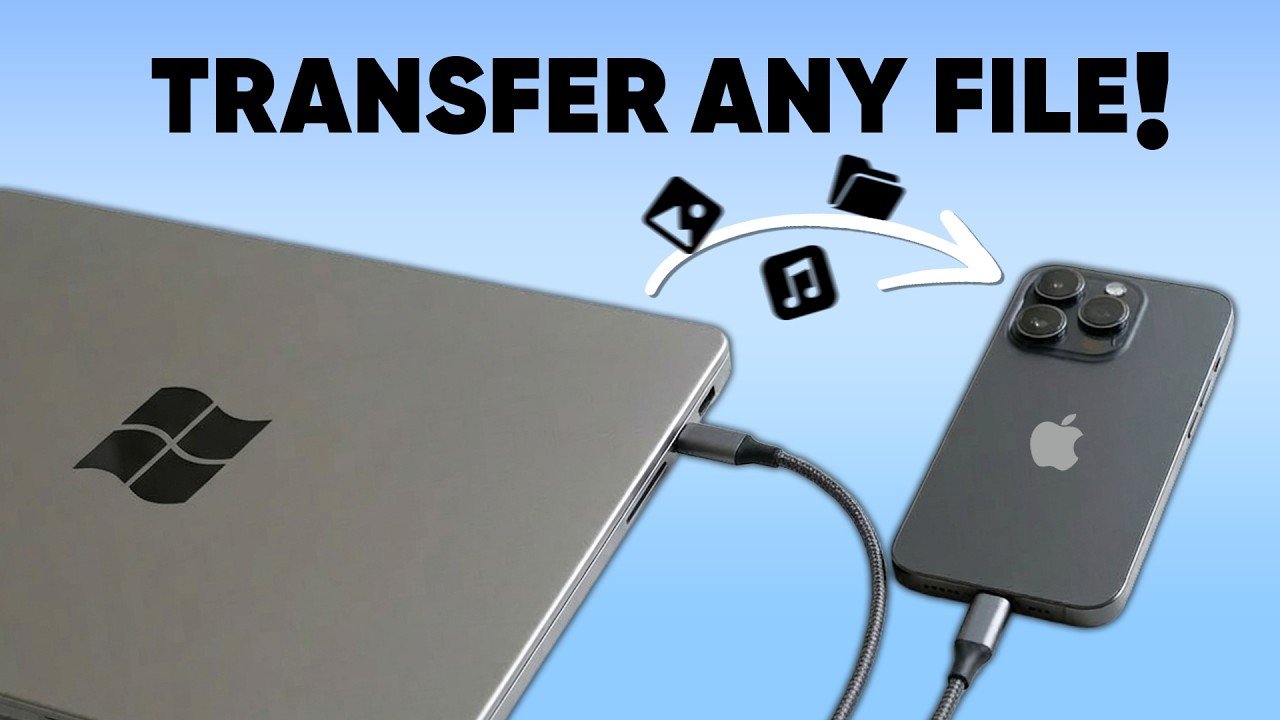
- Connect your iPhone to your PC using a Lightning or USB-C cable.
- Unlock your iPhone and tap “Trust” if prompted.
- Open File Explorer, and your iPhone will appear as a device. Navigate to the DCIM folder to find your photos and videos.
- Drag and drop files directly to your computer.
For a more complete sync — including contacts, calendars, and photo libraries that update automatically — installing iCloud for Windows lets you access your iCloud Photos, files, and bookmarks directly from File Explorer without needing to plug in a cable every time.
On Mac
Macs handle this more natively. Connecting an iPhone via cable opens it directly in Finder, where you can manage backups and transfer files. For wireless transfers, AirDrop is the fastest option for moving individual files or photos between an iPhone and a Mac that are near each other, and iCloud Drive keeps documents and photos synced automatically in the background without any manual transfer at all.
Transferring Data Between Android and PC
Android devices are generally more flexible here, since Android’s file system is more open than iOS by design.
On Windows
A direct USB connection works well for straightforward file transfers:
- Connect your Android phone to your PC with a USB cable.
- Pull down the notification shade on your phone and tap the USB notification.
- Select “File Transfer” (sometimes labeled MTP).
- Your phone will appear in File Explorer, letting you drag and drop files in either direction.
For something more integrated, Microsoft’s Phone Link app pairs your Android phone with your PC wirelessly, letting you view photos, send texts, and even share files by right-clicking them and selecting “Share” without needing a cable at all.
On Mac
Since macOS doesn’t natively recognize Android devices, you’ll need Google’s Android File Transfer app, available as a free download. Once installed, connecting your Android phone via cable and selecting “File Transfer” mode opens a transfer window automatically, similar to the Windows experience.
Wireless Options
Google Drive and Google Photos remain the easiest way to keep files synced automatically between an Android phone and any computer, since both work through a browser as well as an app. Samsung and several other Android manufacturers also support Quick Share, which now has a Windows app, letting you send files directly between an Android phone and a PC over Wi-Fi without needing cloud storage or a cable at all.
The Closest Thing to a Universal Method: Cloud Storage
If you had to pick just one approach that works reasonably well across iPhone, Android, and PC without any brand-specific limitations, it’s cloud storage. Services like Google Drive, Dropbox, and Microsoft OneDrive all have apps for iOS, Android, and both Windows and Mac, meaning a file uploaded from any device becomes instantly accessible on the others.
This won’t perfectly replicate a full-device migration — things like app settings, call logs, or deeply integrated system data still need a platform-specific tool — but for photos, documents, and everyday files, cloud storage is genuinely the most flexible option, and it keeps working automatically going forward rather than being a one-time transfer.
A Few Tips for a Smooth Transfer
- Back up before you start. Whether you’re using an official tool or a third-party app, having a backup means a failed or interrupted transfer won’t cost you anything important.
- Check your storage space first. Both the source device and the destination need enough free space, especially for large photo and video libraries.
- Stick to official or well-reviewed apps. Data transfer tools need fairly deep access to your files, so it’s worth checking reviews and download counts before installing anything unfamiliar, particularly outside the Apple App Store or Google Play Store.
- Keep your old device untouched until you’ve verified everything. Don’t factory reset or sell your previous phone until you’ve confirmed your contacts, photos, and important messages actually made it to the new device.
Which Method Is Actually Best?
It genuinely depends on your situation, but here’s a simple way to decide:
- Switching phones for the first time (Android to iPhone or vice versa): Use the official Move to iOS or Switch to Android tool during setup — it’s free and handles the bulk of your data in one go.
- Everyday file access across all your devices: Set up cloud storage once and let it sync automatically in the background.
- Connecting a phone to a PC for a one-time transfer: A USB cable remains the fastest and most reliable option, with no internet connection or account required.
- Preserving chat history when switching between iOS and Android: A dedicated paid transfer app is usually the only option that handles this properly.
Final Thoughts
Moving your digital life between devices doesn’t have to be complicated once you know which tool fits your actual situation. Official platform tools handle the big, one-time migrations well, cloud storage covers everyday syncing without any extra effort, and cables remain the most dependable option when you just need something to work right now. Combining two or three of these methods, rather than relying on a single one, is usually how people end up with the smoothest transition.
Frequently Asked Questions
Can I transfer everything from an iPhone to an Android phone in one step? Most of your core data — contacts, photos, and calendar entries — can move in a single guided process using Google’s Switch to Android tool or a manufacturer-specific app like Samsung Smart Switch, though some app-specific data may need to be handled separately.
Is it safe to use third-party data transfer apps? Reputable, well-reviewed apps from official app stores are generally safe, but it’s worth checking recent reviews and avoiding lesser-known tools that ask for unnecessary permissions.
Do I need an internet connection to transfer data between devices? Not always. Cable-based transfers and some wireless tools like Quick Share or AirDrop work locally without an internet connection, while cloud-based methods do require one.
What’s the fastest way to move a large photo library? A direct cable connection is typically the fastest method for large libraries, since it avoids upload and download speeds entirely and transfers files at the connection’s full speed.